analytics

Showing posts with label websphere. Show all posts

Thursday, January 31, 2013

Things to take care of while applying fix packs in IBM Cognos

Recently, I worked with a client who was facing problems after they applied fix pack to their Cognos environment. According to them fixpack was a terrible disaster and nothing seemed to work.

After careful investigation and analysis, I found out that they were missing an important step in applying the fix pack.

Since fix packs involves modified binaries, they need to be linked and working all in conjunction with each other. You cannot have a different versions of binaries working together perfectly.

That's why cmplst is there in every IBM Cognos installation to make everything work in sync with version.

Anyway, coming back to the point. If you have a IBM Cognos deployment working on servlet container like apache tomcat, all you need to do is

1. Stop IBM Cognos service.
2. Apply fix pack installables.
3. Start IBM Cognos service and you'll be done.


However, if you are running IBM Cognos on an application server like IBM Websphere or JBoss etc, the steps are little different and lengthy.

1. Stop IBM Cognos service.
2. Apply fix pack installables.
3. Rebuild the ear/war files.
4. Redeploy the ear/war file.
5. Start IBM Cognos service.

The client was using IBM Websphere and doing the steps for apache tomcat, which was the cause of the fiasco that happened.

Please follow above steps while applying fix packs. I'm aware it's documented somewhere however people do mistakes.


Friday, September 7, 2012

IBM's Documentation of deploying Cognos on Websphere

Some of the folks have been wondering about my earlier post that, is it the official documentation? What if it doesn't work?

Well, I didn't know that documentation existed for deploying Cognos on Websphere and tried multiple combinations, many of which didn't work out. I wouldn't say it was the discovery of something great, I'd rather say it's how I made it work and I continue to make that integration, with small changes for 64-bit versions.

A colleague of mine was searching for official documentation so I thought of sharing that with everyone. It's not easy to find as it doesn't contain the word "deploy" which is daily used by people dealing with application servers.

Here's the plain ibm's textual documentation link.
Feel free to explore the other sections around it for other application servers.

Thursday, January 19, 2012

64-bit mashup: Cognos on Websphere Application Server

My earlier blog post about integration of Cognos with Websphere Application Server was based on 32-bit versions. Recently, someone contacted me as they were facing problems because they had 64-bit versions of both Cognos and Websphere Application Server (WAS that we call, for short).

It was showing some CAMCrypto.dll error. I reviewed the steps they had followed (actually they followed steps from my blog-post ;) ). So, I thought of putting this little post about initial analysis.

Whenever you are trying to run Cognos over Websphere Application Service, please
  1. Make sure both are using same version of java, otherwise it will cause unacceptable behaviour.
  2. Make sure you've copied bcprod*.jar (and db2 jars, if using db2 as Content Store) into <java>/lib/ext.
  3. Double check the ports used by Websphere profile and Cognos environment in Cognos configuration.
Well, this was all correct. There's one small change for playing with 64-bit versions. In step 23, of deploying Cognos over WAS, change PATH to point to <your Cognos installation directory>\bin64 instead of <your Cognos installation directory>\bin for 32-bit versions.


64-bit versions lets your Cognos use more memory than 2Gbyte limitation of 32-bit JVM. So, that you could have more resources for your Cognos.

Let me know, if you still face issues.

Thursday, March 24, 2011

Changing default port of IBM Websphere

About a month back, I wrote how to deploy Cognos 10.1 on Websphere. However, I missed an important setting in it. Though logically, IBM Websphere detects and uses a free port for its application server, I didn't point out flexibility of changing it.

Users had to change the port in their IBM Cognos configuration, as mentioned in step 4 of preparing Cognos 10.1. Let me now show you how to configure IBM Websphere on a port that you want Cognos 10.1 to run.

1. Launch admin console of IBM Websphere.

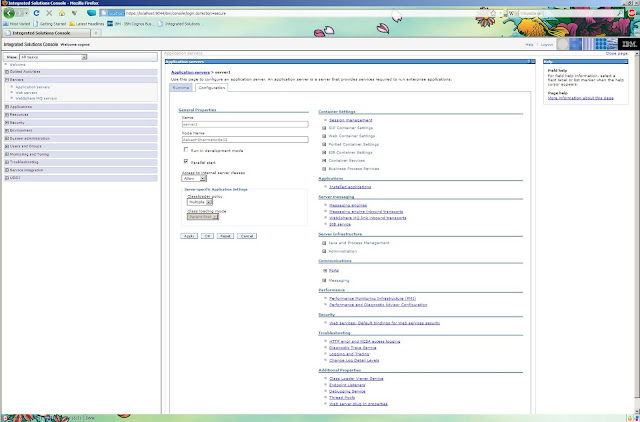
2. Click on Application Servers, under Servers in the left side pane. You'll see server1, your Node and your version in right pane.

3. Click on server1, you'll  a lot of properties related to your IBM Websphere profile. Under Communications, expand Ports.


4. Clicking on Ports, will lead you to a page where you can modify ports used by IBM Websphere.

5. Click on WC_defaulthost to change it. It'll open up a new page, where you can change it. Since, Cognos by default uses port 9300, let's input that in here. Click on OK to apply changes.

6. If any of your applications running on your IBM Websphere is currently using the old WC_defaulthost port, it'll throw up something like this. You don't need to worry. Just click on save changes. Stop your applications. Modify ports in those applications and upgrade applications.

If no application was running, click on save and restart IBM Websphere server profile to apply the changes. For deploying Cognos, the steps remain the same.


If you face any problems or would like to discuss more on this, please leave a comment.

Monday, February 7, 2011

Deploying IBM Cognos 10.1 on IBM Websphere 6.1

Prerequisites:


1. IBM Cognos 10.1 installation.
2. IBM Websphere 6.1 installation.


Preparing IBM Websphere

1. After you have installed IBM Websphere, a profile is created by default.
2. It is recommended that you create a new profile for Cognos.
3. Launch “Profile Management Tool” from IBM Websphere installation.


4. Click Next

5. Select “Application Server” and click “Next”.


6. Choose “Typical Profile Creation” and click on “Next”

7. If you want to enable administrative security, provide a username and password.

8. Review the profile settings, also note down the HTTP transport port from here (this would be used in configuring Congos). Click on “create” to to finish.

9. Your profile would be created in few minutes. Window would be like this


10. When complete, it'll ask you to launch “first steps console”. Click on finish to launch that.

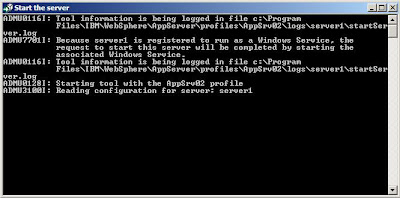
11. In first steps console, click on “start server” to start your server. Administrative console can only be launched after the server has started. Alternatively, you can start server by

12. While starting a server, screen would look like this


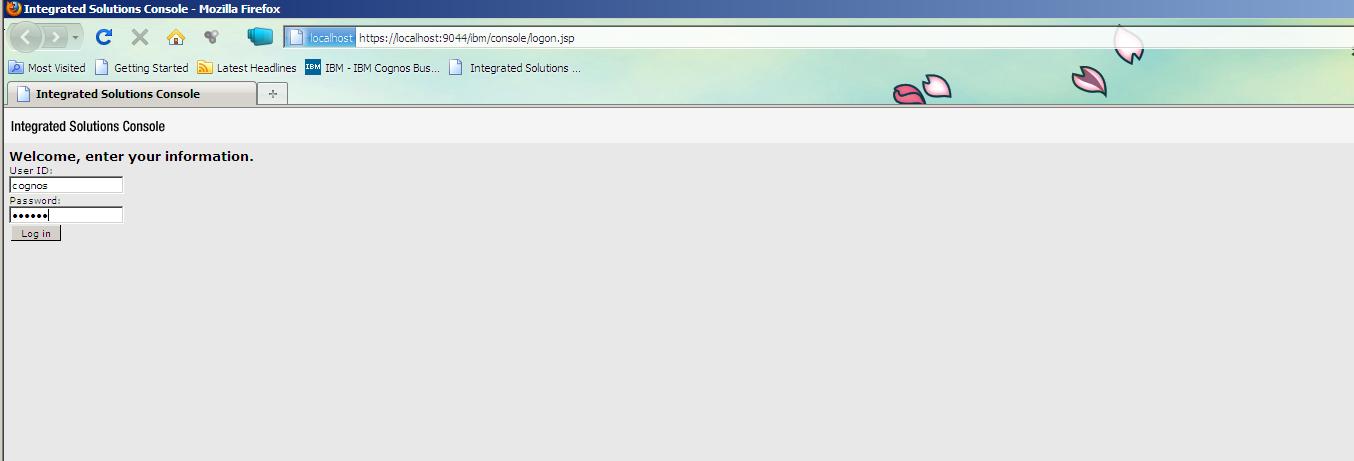
13. On successful start of server, the above window closes automatically. Then launch administrative console by


14. Administrative console would look like this. Provide credentials which were used while creating profile to login.

15. Welcome page of IBM Websphere would look like this.

16. On the left hand side, expand “servers” then click on “application servers”. You'll see “server1” in the right pane

17. Click on “server1”. You'll see a lot of configuration settings.


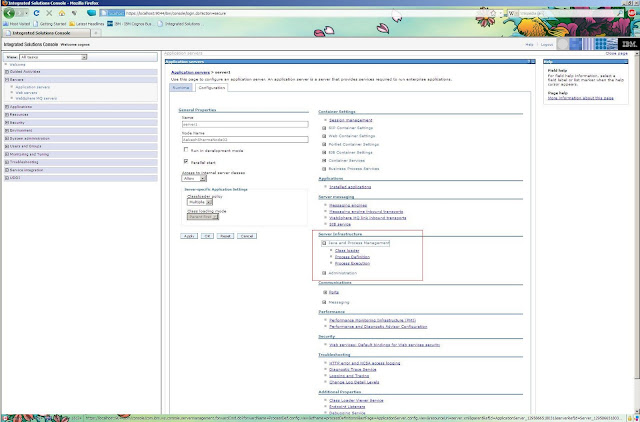
18. Under “Server Infrastructure”, navigate to “Java and Process Management” → “Process Definition”.

19. Under “Additional Properties”, click on “Java Virtual Machine” to set JVM parameters for Cognos.


20. Set Initial and Max heap sizes for JVM. Click on OK to finish.

21. Now, under “Java Virtual Machine”, click on “Environment Entries”.

22. Click on New to create a new environment variable.


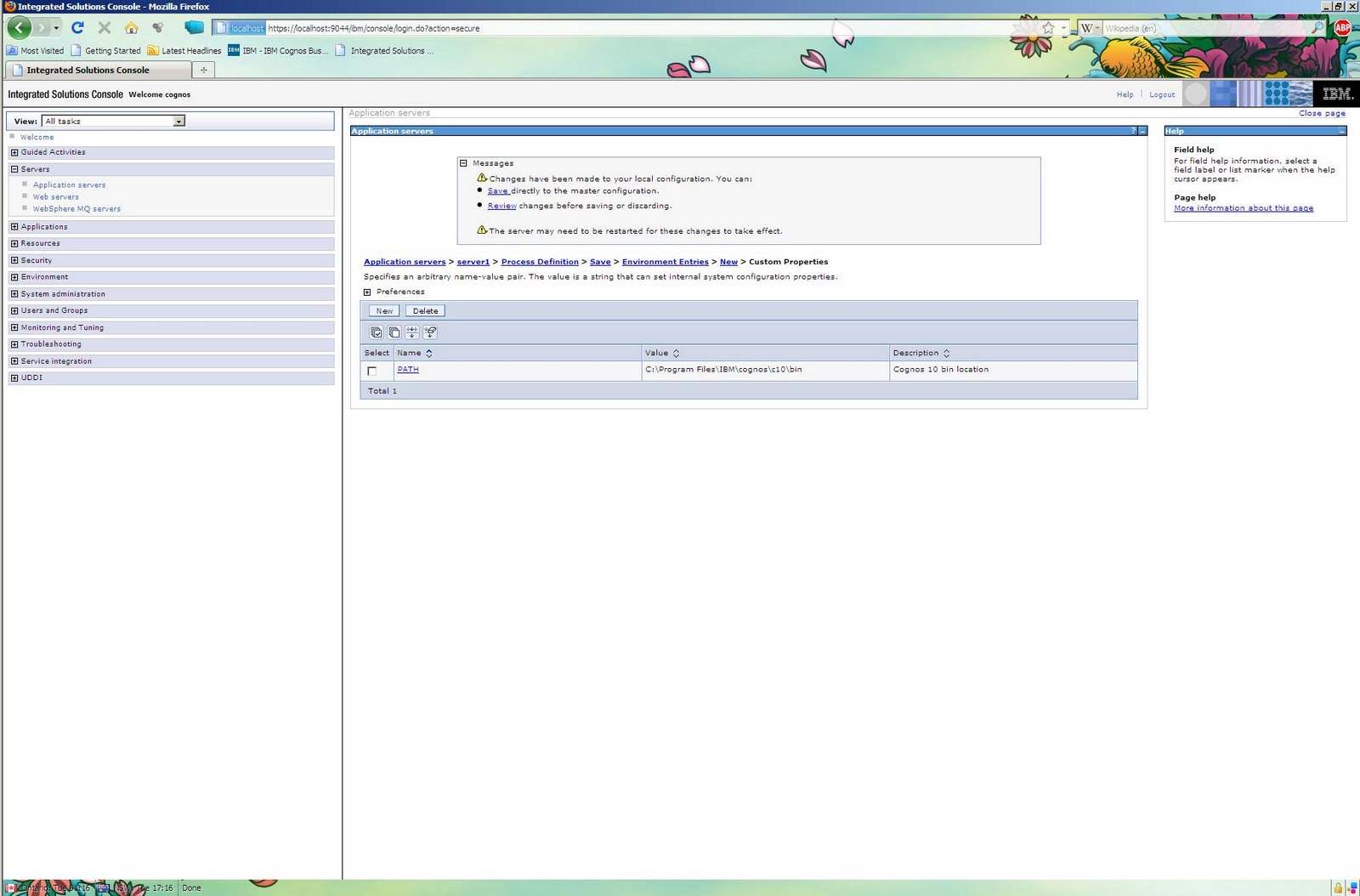
23. Give name as “PATH” and value as “<your Cognos 10 installation>\bin”. Click on OK. 


24. Click on “Save” to save your changes to configuration.


Preparing Cognos 10.1

1. Copy “bcprov-jdk14-134.jar” from
 <%Cognos 10 Installation%>\bin\jre\6.0\lib\ext to <%IBM Websphere%>AppServer\java\jre\lib\ext.

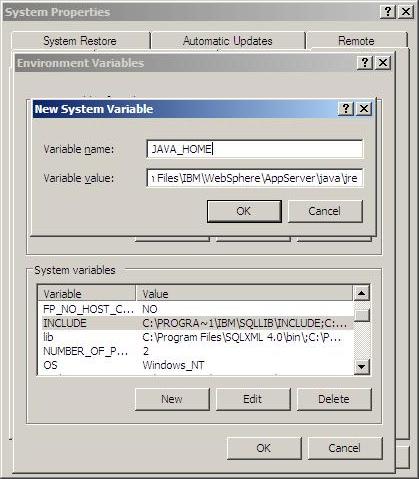
2. Create an environment variable “JAVA_HOME” with value
<%IBM Websphere%>AppServer\Java\jre.

3. Launch Cognos 10.1 Configuration.
4. Using the port number identified in step 9 of “preparing IBM Websphere”. In our case it's 9081. Modify the port numbers in URI of dispatcher and content manager


5. Don't forget to modify port in Portal Services.

6. Delete Cognos Tomcat Service Configuration under IBM Cognos Services.
7.  Save Cognos Configuration.


8. In menu, go to Actions-> Build Application Files.

9. By default, IBM Cognos is selected and Application Server Type is Websphere. No need to change, click on Next.

10. Again, by default EAR file is selected. Change location path where .ear file would be generated, if required.


11. After finishing, 'p2pd.ear' file would be generated in your <%Cognos 10 Installation%>.


Integrating Cognos 10.1 with Websphere.

1. Launch Websphere Administrative Console. Provide credentials and login.
2. On left hand side, expand “Applications”, click on “Install new application” and browse and select 'p2pd.ear' that was build in earlier steps. No need to provide any information in context root. Click next.


3. Continue with default settings. Click next.


4. On next page, select the check-box before IBM Cognos. And click on next.


5. Again on next page, select the IBM Cognos module. And click next.


6. On summary page, click finish to complete deployment.


7. After you click finish, Websphere will install the application for you. Your page would look like this. Click on save to save the changes. Restart Websphere to start Cognos.